MEPCO New Connection 2026: Apply Online, Documents, Fee & Status Tracking
Building a new house, opening a shop or installing a tube well? You will need a MEPCO new connection before you can get a meter. The good news is that the process is now much easier than before, because you can apply online, upload documents and track your file without visiting offices again and again. This 2026 guide explains every step of a MEPCO new connection: where to apply, the documents you need, how the demand notice fee works, how to check MEPCO new connection status and how to avoid common delays.
MEPCO New Connection 2026: Quick Overview
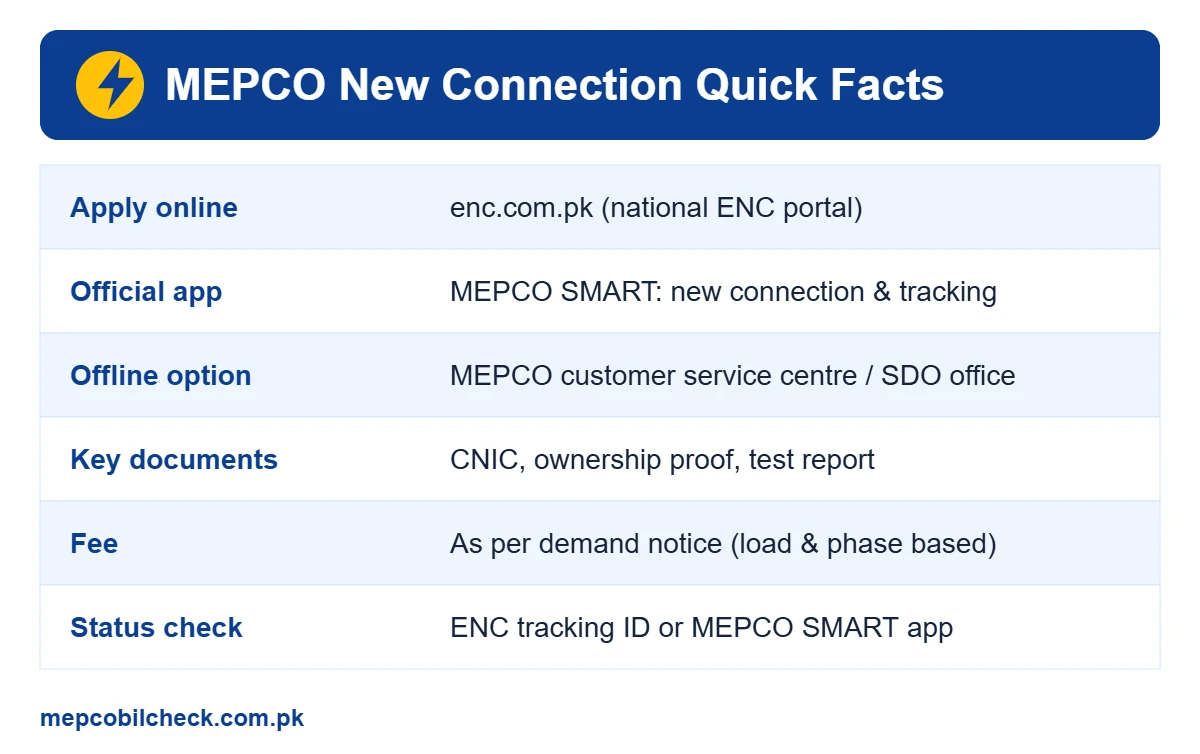
| Item | Details |
|---|---|
| Where to apply online | National ENC portal at enc.com.pk |
| Official mobile app | MEPCO SMART (new connection and tracking options) |
| Offline application | MEPCO customer service centre or SDO office |
| Main documents | CNIC, proof of ownership or tenancy, wiring test report |
| Fee | As shown on your demand notice, based on load and connection type |
| Status tracking | ENC tracking ID, MEPCO SMART app or SDO office |
Types of MEPCO New Connection
MEPCO provides different connection types depending on how you will use the electricity. Choose the right type at the start, because changing it later means a fresh request:
- Domestic (residential): For houses and flats. Most homes start with a single-phase meter; larger homes with several air conditioners may need a three-phase connection.
- Commercial: For shops, offices, clinics, plazas and other businesses.
- Agricultural: For tube wells and farm use, common across South Punjab.
- Industrial: For factories and workshops, usually with higher loads and separate requirements.
- Bulk or multi-unit supply: For housing societies, plazas and large buildings with many units.
The sanctioned load you request decides the meter type and the fee. Residential connections with a sanctioned load of 5 kW or more are put on Time of Use (TOU) billing, so read our guide on MEPCO peak hours before you decide your load.
Documents Required for a MEPCO New Connection
Keep scanned copies ready before you start the MEPCO new connection apply online process:
- CNIC of the applicant (front and back)
- Proof of ownership: registry, fard, allotment letter or transfer letter
- For tenants: rent agreement and the owner’s CNIC copy with a no objection letter
- Wiring test report signed by a licensed electrical contractor
- Recent passport-size photograph of the applicant
- Reference number of a nearby existing connection, if the form asks for it
- For commercial or industrial use: business registration or other documents requested by MEPCO
Make sure the name and address are the same on every document. Small mismatches are one of the most common reasons for delay.
How to Apply for a MEPCO New Connection Online
According to MEPCO’s official Ease of Doing Business page, new connections are applied for online through the ENC portal, which routes your application to the right distribution company automatically. Here is the general process:
- Open enc.com.pk in your browser.
- Create an account or sign in with your mobile number and email.
- Select MEPCO as your distribution company and choose the connection type.
- Fill in your personal details, the site address and the load you need.
- Upload your CNIC, ownership proof and other documents.
- Submit the form and pay any required fee through the digital options shown.
- Save your application or tracking ID for future status checks.
You will receive progress updates by SMS or email as your MEPCO new connection file moves forward.
Apply Through the MEPCO SMART App
The official MEPCO SMART app, listed on the MEPCO website, includes a New Connection option to apply from anywhere and a Track New Connection option to check progress. This is handy if you do not use a computer. Download the app only through the official link on the MEPCO website.
Apply at a MEPCO Office (Offline)
If you prefer face-to-face help, visit the customer service centre or SDO office of the area where the connection is needed. MEPCO also provides a new connection form on its website at mepco.com.pk. Submit the filled form with document copies and ask for a receipt or application number.
What Happens After You Apply
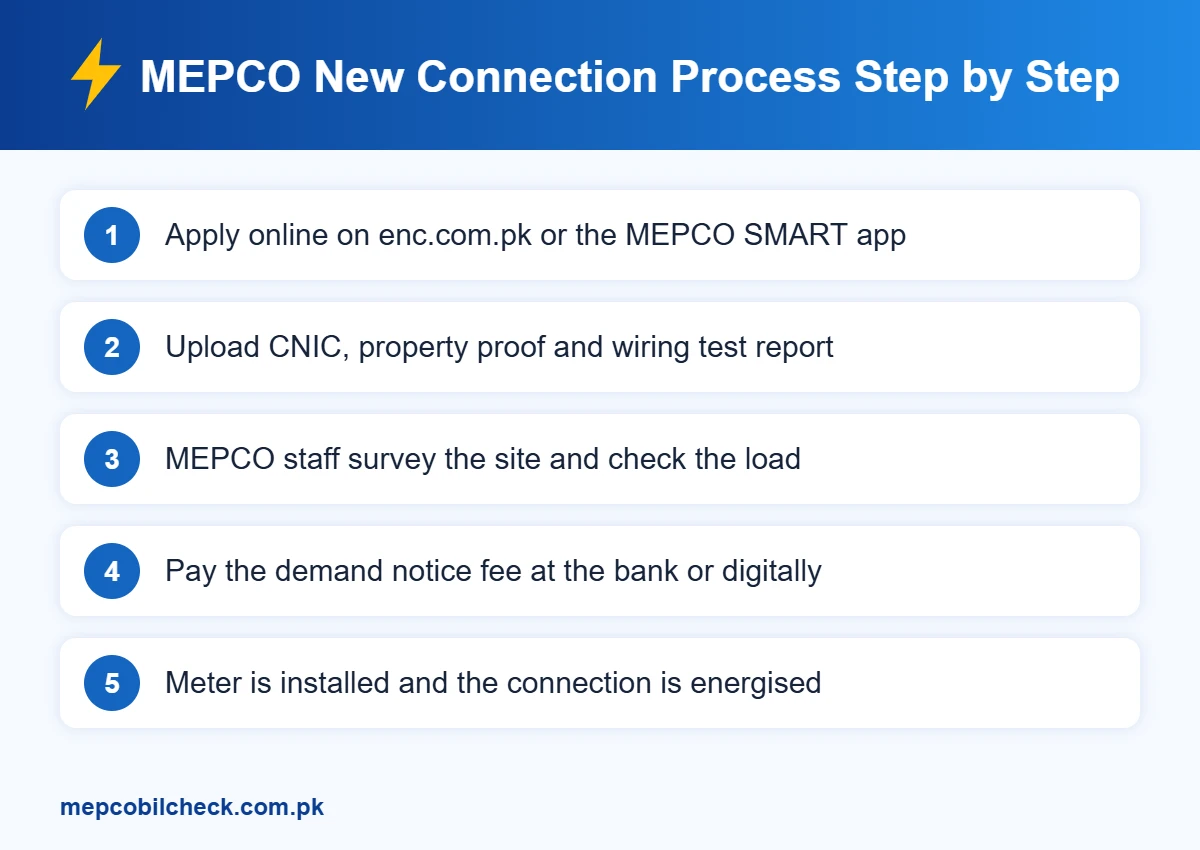
A MEPCO new connection goes through a few stages after you submit the application:
- Scrutiny: Staff check your documents and the details in the form.
- Site survey: A MEPCO team visits the site to check the location, nearby lines, transformer capacity and the load you asked for.
- Demand notice: If everything is in order, MEPCO issues a demand notice that shows the amount you must pay.
- Payment: You pay the demand notice fee within the given time through the bank or an official digital channel.
- Test report and agreement: You submit the wiring test report and complete any remaining paperwork.
- Installation: The meter and service cable are installed, and the connection is energised.
Once your connection is running, your first bill will arrive with a new 14-digit reference number. Save it and use our MEPCO bill check online tool every month.
MEPCO New Connection Fee and Demand Notice
There is no single fixed MEPCO new connection fee for everyone. The amount on your demand notice depends on:
- The connection type: domestic, commercial, agricultural or industrial
- Single-phase or three-phase supply
- The sanctioned load in kilowatts
- Meter cost and service cable length
- Security deposit, which depends on load and tariff
- Any extension of lines or transformer work needed for your site
Always pay the demand notice only through the bank or the official digital option mentioned on it, and keep the paid receipt safe. MEPCO staff should never ask for cash payments in hand.
How to Check MEPCO New Connection Status
You can check MEPCO new connection status in three ways:
- ENC portal: Sign in on enc.com.pk and open your application with the tracking ID.
- MEPCO SMART app: Use the Track New Connection option.
- SDO office: Visit with your application number and CNIC.
Common status stages include application received, under scrutiny, survey done, demand notice issued, payment received and connection installed. If your file stays at one stage for too long, follow up with your application ID.
How Long Does a MEPCO New Connection Take?
The time depends on your load, the area and whether new lines or a transformer are needed. A simple domestic connection near existing lines usually moves faster than an agricultural or industrial connection that needs network work. NEPRA’s Consumer Service Manual sets timelines for distribution companies at each stage, including issuing the demand notice and installing the connection after payment. If you feel your MEPCO new connection is delayed without reason, you can complain through the channels in our MEPCO complaint number guide and escalate to NEPRA.
Single-Phase or Three-Phase: Which MEPCO New Connection Do You Need?
Estimate your load before applying. Add up the wattage of the appliances you expect to run together:
| Appliance | Typical load |
|---|---|
| 1.5 ton air conditioner | 1.5 to 2 kW |
| Electric iron | 1 kW |
| Water motor (1 HP) | 0.75 kW |
| Fridge | 0.2 to 0.3 kW |
| Fans and LED lights (whole house) | 0.5 to 1 kW |
A small home without air conditioners can manage on a basic single-phase load, while a home with two or more ACs may need a higher load or a three-phase supply. Ask your contractor to calculate the load properly. Under-declaring load can cause tripping, and over-declaring it raises fixed charges.
Common Reasons for Delay or Rejection
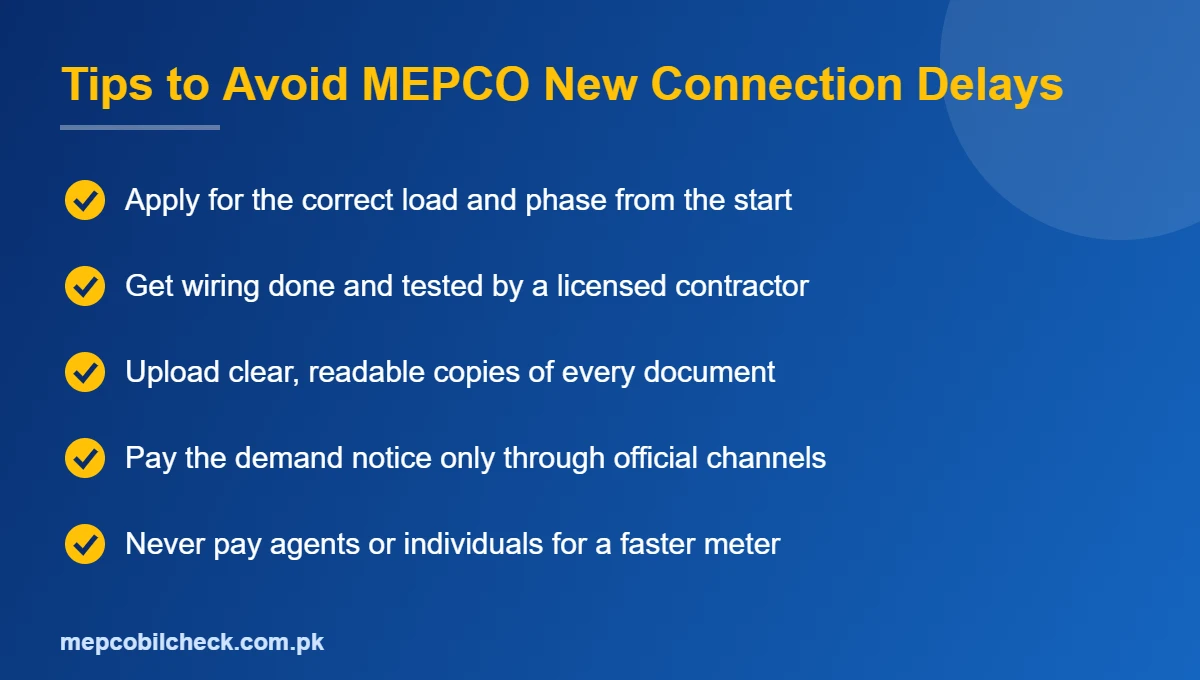
- Name or address mismatch between CNIC and property documents
- Missing or unsigned wiring test report
- Property dispute or missing owner consent for tenants
- Outstanding dues on an old connection at the same premises
- The local transformer or line is already overloaded
- Wrong connection type selected in the application
Fixing these issues before you apply saves weeks.
MEPCO New Connection for Solar Net Metering
If you plan to install solar panels, get the normal MEPCO new connection first. Net metering is a separate process done later through a certified installer. MEPCO’s website explains that you submit your bill, CNIC and solar system details, MEPCO inspects the system, and a bi-directional meter is installed after approval.
Frequently Asked Questions
How do I apply for a MEPCO new connection online?
Apply on the national ENC portal at enc.com.pk or through the MEPCO SMART app. Upload your CNIC, ownership proof and wiring test report, then save your tracking ID.
What is the MEPCO new connection fee?
The fee is shown on your demand notice. It depends on the connection type, phase, load, meter and cable cost and the security deposit.
How can I check MEPCO new connection status?
Use your tracking ID on the ENC portal, the Track New Connection option in the MEPCO SMART app, or visit your SDO office.
Can a tenant apply for a MEPCO new connection?
Yes, with a rent agreement and the owner’s CNIC copy and written consent. The connection is usually registered according to the property records.
Do I need an agent to get a meter faster?
No. Apply directly online or at the office and pay only through official channels. Paying agents can lead to fraud and does not speed up a genuine file.
Final Words
Getting a MEPCO new connection in 2026 is a clear, step-by-step process. Prepare the right documents, apply online through the ENC portal or the MEPCO SMART app, pay the demand notice through official channels and track your file with the tracking ID. Once your meter is installed, check every bill online with our free MEPCO bill check online tool, and keep our MEPCO bill check by CNIC guide handy in case you ever lose your reference number.
2 Comments